Friday, June 8, 2012

Data sharing between two Android applications

In this tutorial I'm going to illustrate how we can share data between two Android applications using Shared Preference.
To implement this I used two Android applications. One is "Datawriter" and the other one is "Datareader".
"Datawriter" is to update shared data. Its' package name is com.writer.data class name is DataWriterActivity . Here is the code for DataWriterActivity class.

package com.writer.data;

import android.app.Activity;
import android.content.Context;
import android.content.SharedPreferences;
import android.os.Bundle;

public class DataWriterActivity extends Activity {
    /** Called when the activity is first created. */
    @Override
    public void onCreate(Bundle savedInstanceState) {
        super.onCreate(savedInstanceState);
        setContentView(R.layout.main);
        dataWriter();
    }
    
    public void dataWriter(){
        String strShareValue = "Hello! this is shared data";
        SharedPreferences prefs = getSharedPreferences("demopref",Context.MODE_WORLD_READABLE);
        SharedPreferences.Editor editor = prefs.edit();
        editor.putString("demostring", strShareValue);
        editor.commit();
    }
}

dataWriter method will write the string Hello! this is shared data to a shared memory.

Next application is to read shared data. The application name is  Datareader and its' package name is com.datareader class name is DataReaderActivity. Here is the code for DataReaderActivity class.
package com.datareader;

import android.app.Activity;
import android.content.Context;
import android.content.SharedPreferences;
import android.content.pm.PackageManager.NameNotFoundException;
import android.os.Bundle;
import android.util.Log;
import android.widget.TextView;

public class DataReaderActivity extends Activity {
 String dataShared;
    /** Called when the activity is first created. */
    @Override
    public void onCreate(Bundle savedInstanceState) {
        super.onCreate(savedInstanceState);
        setContentView(R.layout.main);
         dataRead();
         TextView tv = (TextView)findViewById(R.id.textView1);
         tv.setText(dataShared);
        
    }
    
    public void dataRead(){
      Context con;
         try {
             con = createPackageContext("com.writer.data", 0);
             SharedPreferences pref = con.getSharedPreferences("demopref", Context.MODE_PRIVATE);
             dataShared = pref.getString("demostring", "No Value");
         }
         catch (NameNotFoundException e) {
             Log.e("Not data shared", e.toString());
         }
    }
}

"com.writer.data" in the highlighted line is the package name of the first application which we used to share data.
Following is the out put of second application :

Sunday, April 8, 2012

Hibernate Database Update Example

Using Hibernate library We can update a database easily. This post will describe how we can perform update operation on MySQL database.
Before trying to this you have to read my previous tutorial. I'm going to update same database used in that tutorial.

Here is the code :
package hibernatetest;

import java.util.Iterator;
import org.hibernate.Session;
import org.hibernate.SessionFactory;

/**
 *
 * @author Chathura
 */
public class HibernateTest {

    /**
     * @param args the command line arguments
     */
    public static void main(String[] args) {
       System.out.println("Test");
       Session session = null;
    try{
        SessionFactory sessionFactory = new org.hibernate.cfg.Configuration().configure().buildSessionFactory();
        session =sessionFactory.openSession();
        session.beginTransaction();
         
        String HQL_QUERY ="from Customer customers where customers.customerID = :customerId";
        org.hibernate.Query query = session.createQuery(HQL_QUERY);
        //Prepared statement
        query.setParameter("customerId",5);
   
          for(Iterator it=query.iterate();it.hasNext();){
             Customer customer = (Customer) it.next();
             customer.setCustomerName("Updated");
          }
          
        session.getTransaction().commit();
        System.out.println("Done!");
        }
     
    catch(Exception e){
        System.out.println(e.getMessage());
    }
  
  finally{
    session.flush();
    session.close();
  }
        
 }
}

This program will update customer name to "Updated" where customer ID = 5 (Look line 27)

Result :

If you find this is helpful don't forget to leave a comment. Because your comments always encourage me!

Saturday, April 7, 2012

Android Web service Access Tutorial

Updated tutorial for new versions >> http://codeoncloud.blogspot.com/2013/06/android-java-soap-web-service-access.html

This simple example demonstrates how we can access a java web service  from Android application.
We can't connect Android 3.0 and after versions to the internet in the main thread. So we have to start new thread. In this tutorial I'm going to demonstrate how we can access a simple java web service  by starting new thread. I have tested this on Android 4.0.3 platform.

Following is the sample java code for web service class. Deploy this web service on Tomcat server at local host. To implement this web service follow these posts.
1. Create java web service in Eclipse using Axis2 (Part 01)
2. Create java web service in Eclipse using Axis2 (Part 02) 

package com.android.ws;
public class PrintMsg {
 public String sayHello(){
           return "Hello Chathura";
        }
}
Here is the code for Android application to invoke deployed web service.
import org.ksoap2.SoapEnvelope;
import org.ksoap2.serialization.SoapObject;
import org.ksoap2.serialization.SoapPrimitive;
import org.ksoap2.serialization.SoapSerializationEnvelope;
import org.ksoap2.transport.HttpTransportSE;
 
import android.widget.TextView;
import android.app.Activity;
import android.os.Bundle;
 
public class AndroidWSClientActivity extends Activity {
  
    private static final String SOAP_ACTION = "http://ws.android.com/sayHello";
    private static final String METHOD_NAME = "sayHello";
    private static final String NAMESPACE = "http://ws.android.com/";
    private static final String URL = "http://175.157.229.119:8080/AndroidWSTest/services/PrintMsg?wsdl";
    /** Called when the activity is first created. */
    @Override
    public void onCreate(Bundle savedInstanceState) {
    super.onCreate(savedInstanceState);
    setContentView(R.layout.main);
      
    Thread networkThread = new Thread() {
    @Override
    public void run() {
      try {
         SoapObject request = new SoapObject(NAMESPACE, METHOD_NAME);         
         SoapSerializationEnvelope envelope = new SoapSerializationEnvelope(SoapEnvelope.VER11);
         envelope.setOutputSoapObject(request);
          
         HttpTransportSE ht = new HttpTransportSE(URL);
         ht.call(SOAP_ACTION, envelope);
         final  SoapPrimitive response = (SoapPrimitive)envelope.getResponse();
         final String str = response.toString();
 
         runOnUiThread (new Runnable(){ 
     public void run() {
         TextView result;
         result = (TextView)findViewById(R.id.textView1);//Text view id is textView1
         result.setText(str);
           }
       });
      }
     catch (Exception e) {
         e.printStackTrace();
     }
    }
  };
  networkThread.start();
  }
 }
}

Note:
SOAP_ACTION in line 13 is "NAMESPACE/METHOD_NAME".

METHOD_NAME
in line 14 is WSDL operation. You can find something like <wsdl:operation name="sayHello"> in your WSDL sayHello is METHOD_NAME here.

NAMESPACE in line 15 is targetNamespace in the WSDL. Replace that & add a "/" to the end .

URL in line 16 The URL of WSDL file. In my case it is http://175.157.229.119:8080
/AndroidWSTest/services/PrintMsg?wsdl
blue colored is the ip of the server replace it with your ip & red colored is the port number.

Make appropriate changes according to your WSDL. I think it is easy to find those things if you open WSDL from a web browser. For more details look the image :


Add Internet permission to Androidanifest.xml file.(Look highlighted line)


}


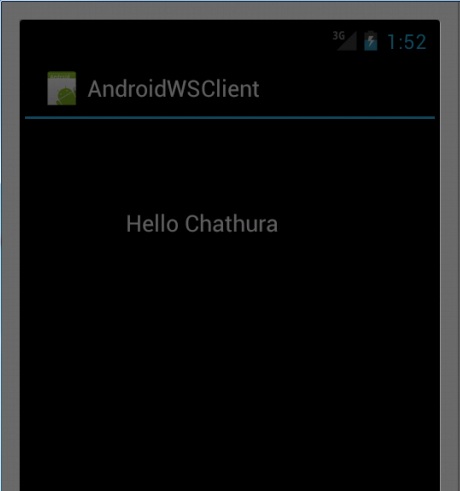
Run the application using Emulator.
Result :


You can download updated project here here
Password :cloud

 
If you find this post helpful don't forget to leave a comment. Your comments always encourage me!